


Microsoft Entra Setup for Meetical
When users try to connect Meetical to Microsoft 365, Microsoft Entra may block the connection because the tenant’s app consent settings do not allow users to grant the required permissions themselves. In this case, users may see a “Need admin approval”(screenshot below) message without any option to request approval, which prevents them from continuing the setup on their own. This guide explains which Microsoft Entra settings need to be adjusted so customers can either enable the approval request workflow or allow admins to pre-consent access for all users.
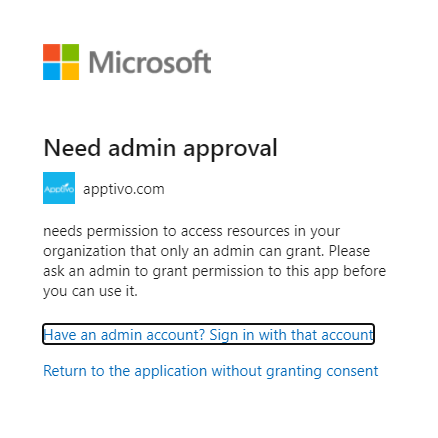
Choose Solution A for an approval-based rollout (users request access, admins approve) or Solution B for a seamless rollout (admin approves once, everyone can connect).
Solution A - Request approval flow
This option forces users into the “Request approval” flow when admin consent is required: users submit a reason, admins get an email, and users get notified once approved.
1. Configure User consent so users can’t self-consent
- Path: "Enterprise applications" → "Consent and permissions" → "User consent settings"
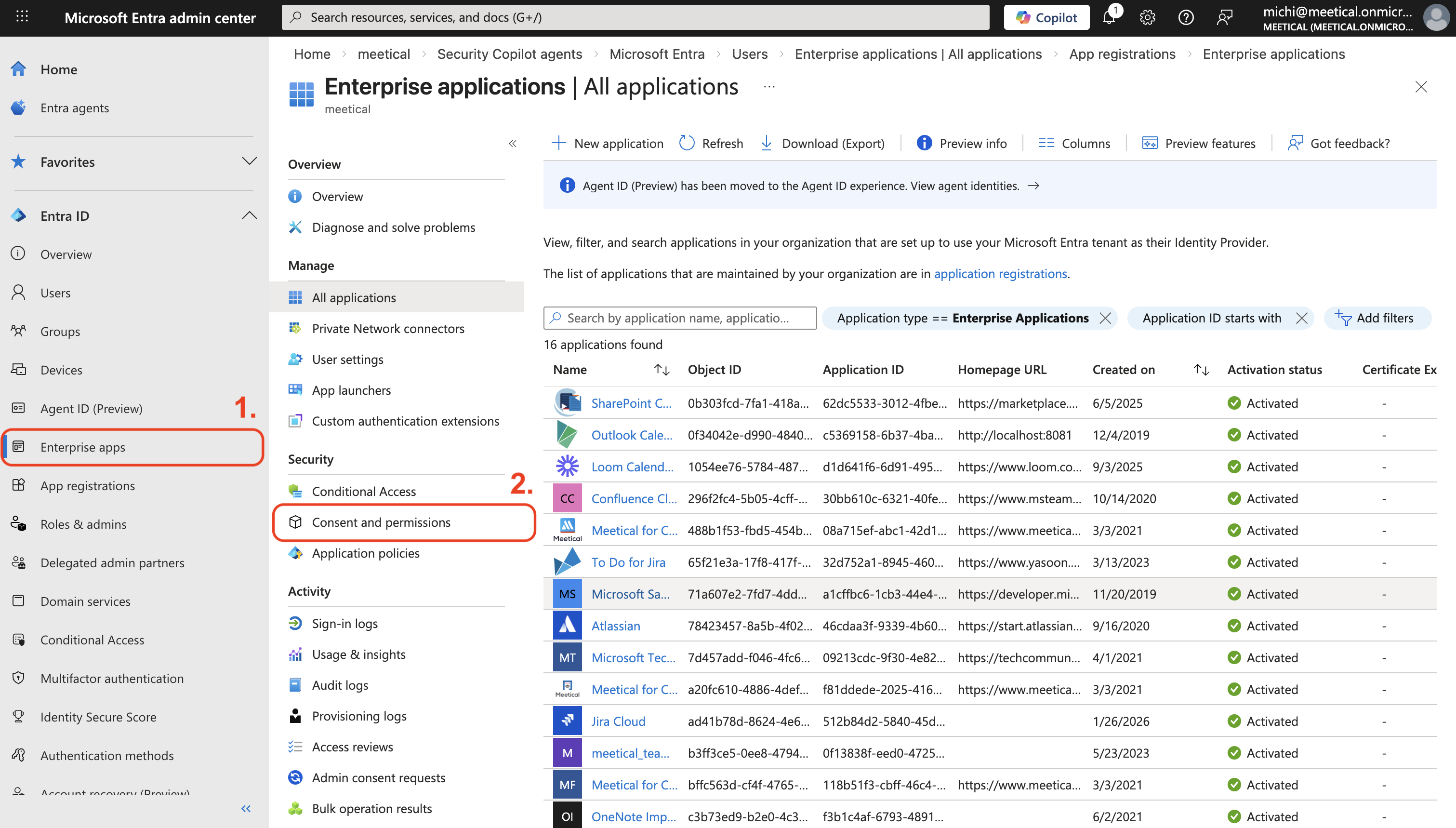
- Choose "Let Microsoft manage your consent settings"
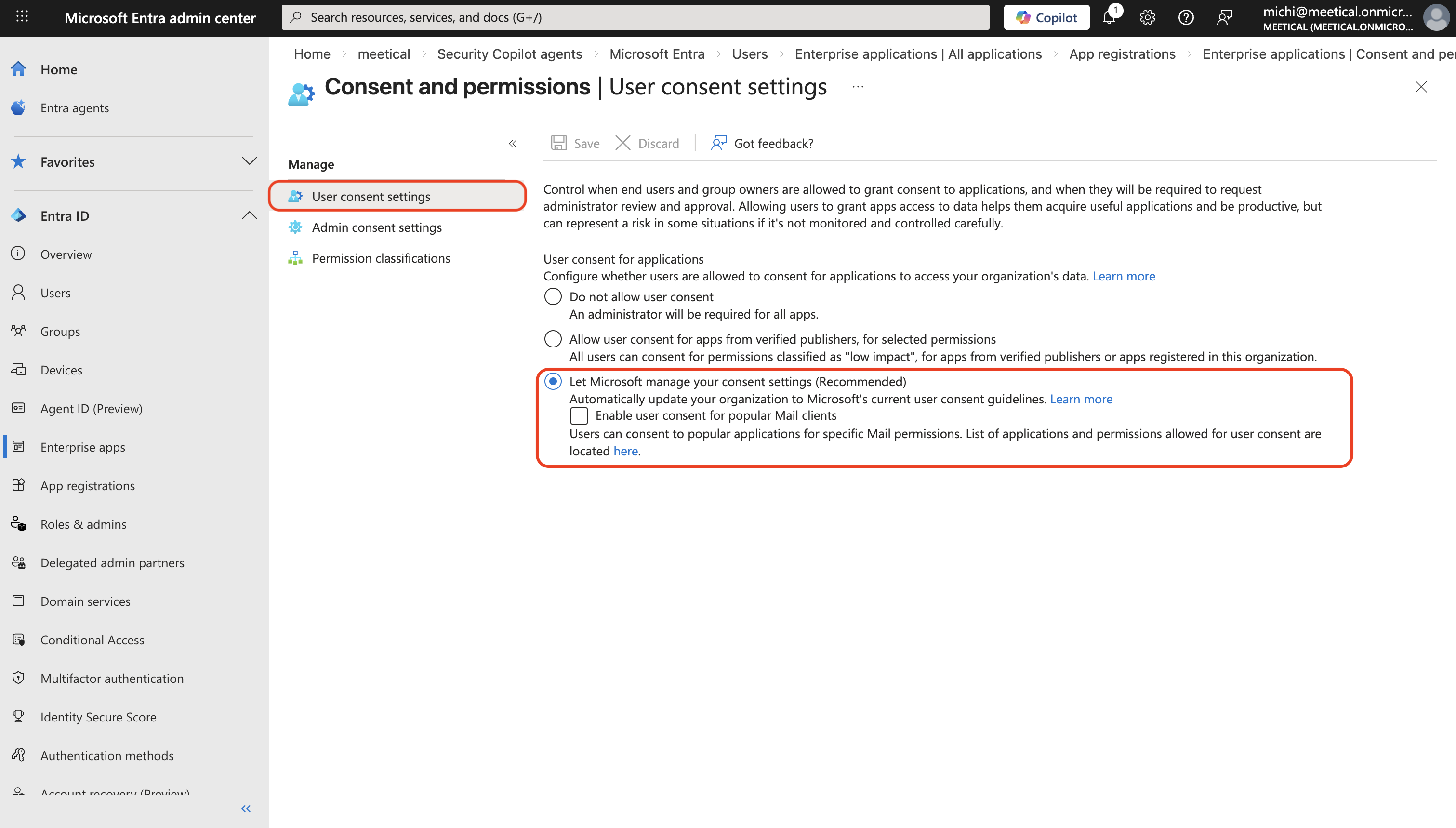
2. Enable the Admin consent workflow
- Path: "Enterprise applications" → "Consent and permissions" → "Admin consent settings"
- Settings:
- Set "Users can request admin consent" = Yes
- Add Reviewers (admin or user/group which approves the requests),
- Set "Selected users will receive email notifications for requests" = Yes
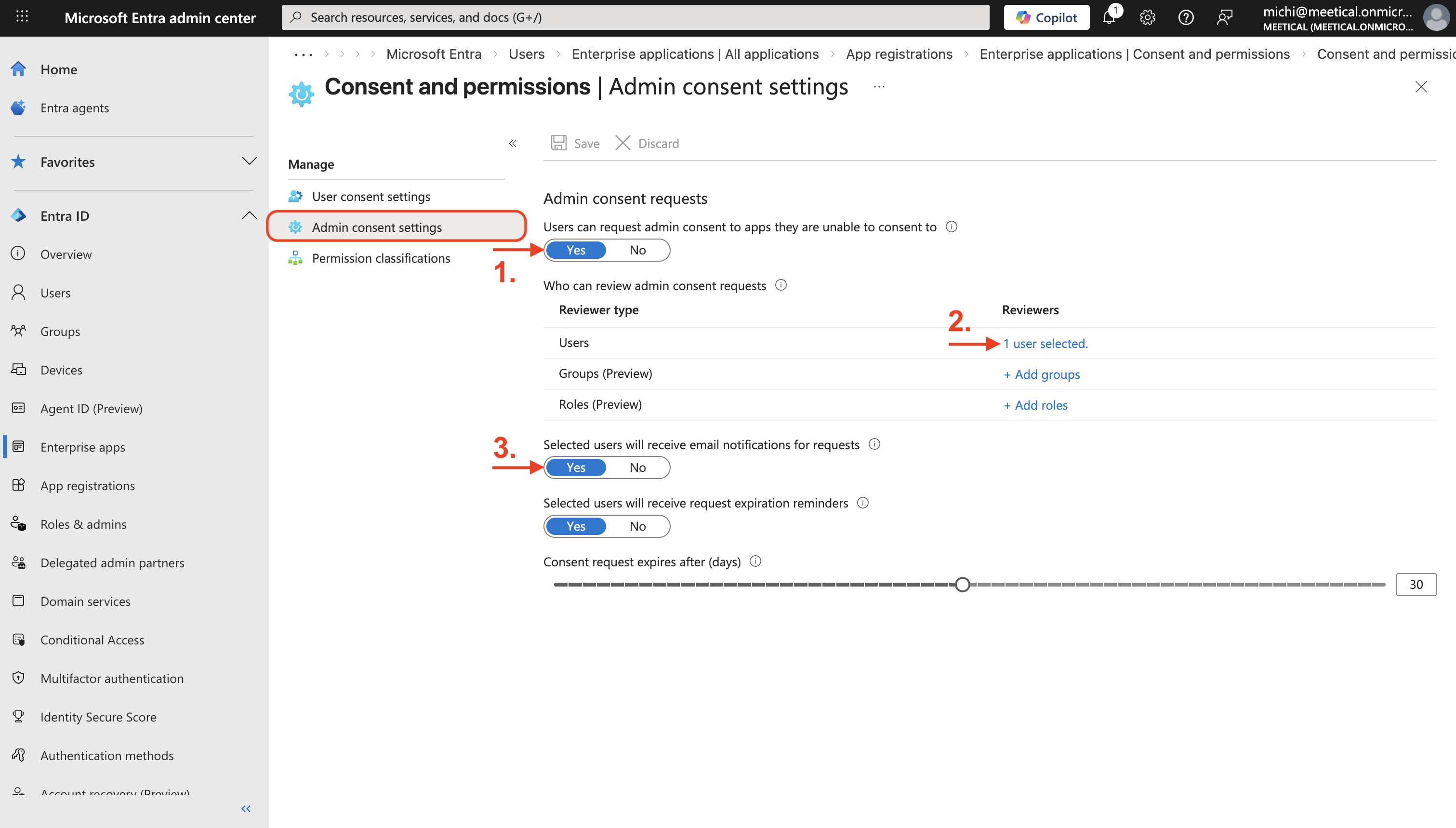
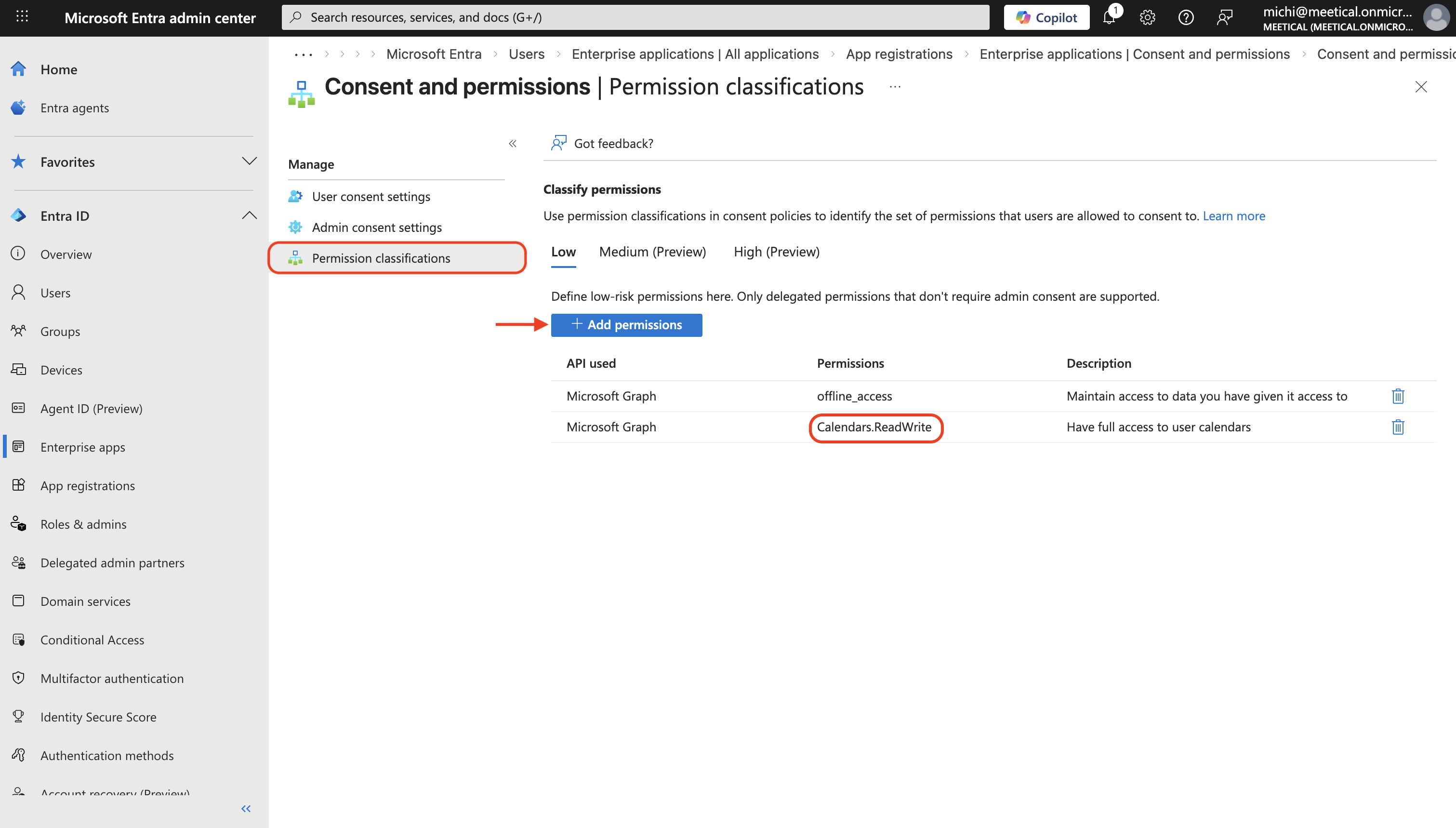
3. Permission classifications (allows end users to grant an app delegated permission to read and write their calendars without requiring admin approval)
- Path: "Enterprise applications" → "Consent and permissions" → "Permission classifications"
- Add "Calendars.ReadWrite" to LOW
If the user is trying to connect an app to Microsoft 365, they should see something like this:

The User has to enter some reason and click on "Request approval", then admins get an email, and users get notified once approved.
Solution B - Remove approval prompt
This option removes the approval prompt: an admin grants tenant-wide consent once, and then all users can connect without requesting access
1. Grant tenant-wide admin consent for Meetical
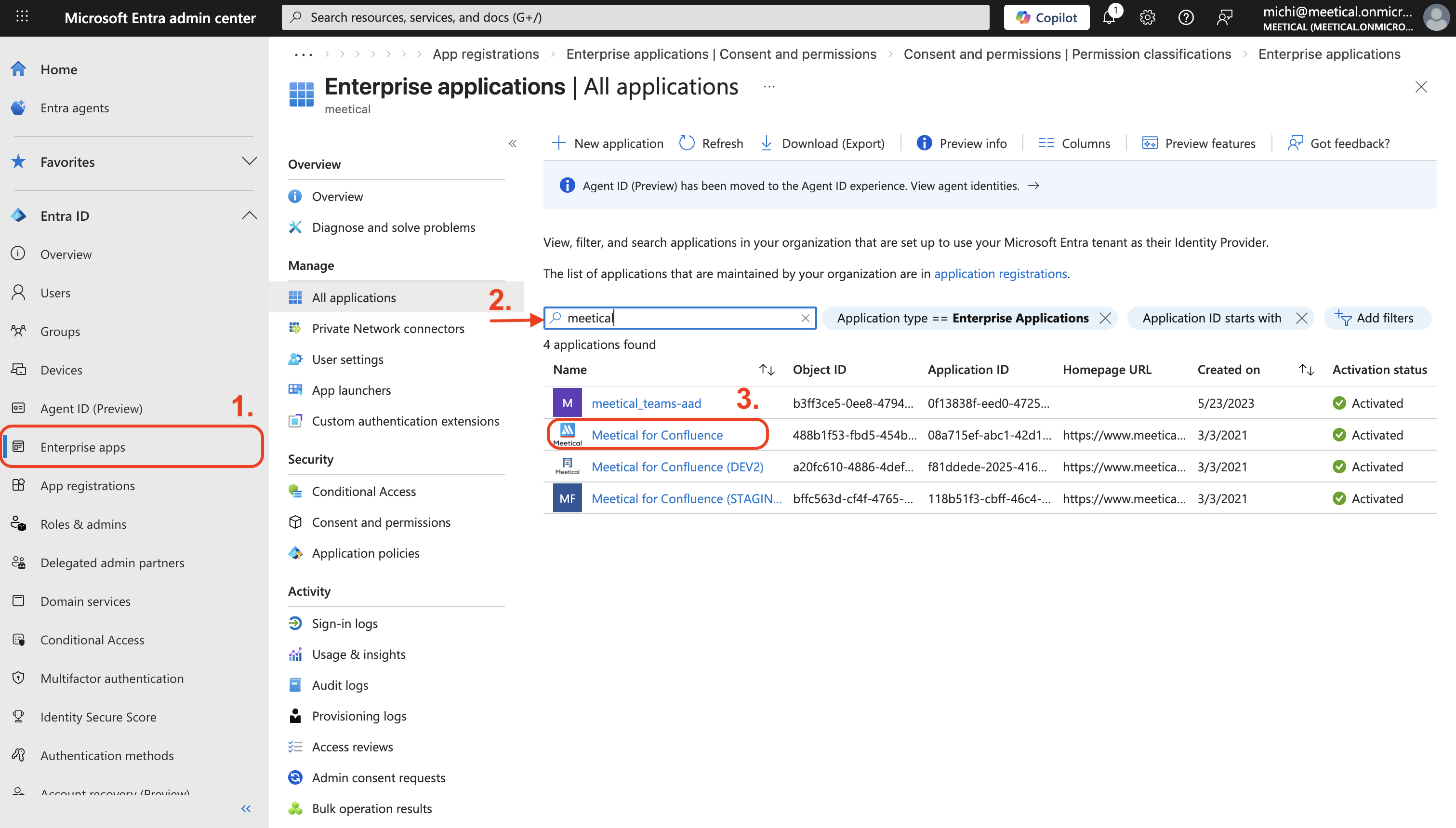
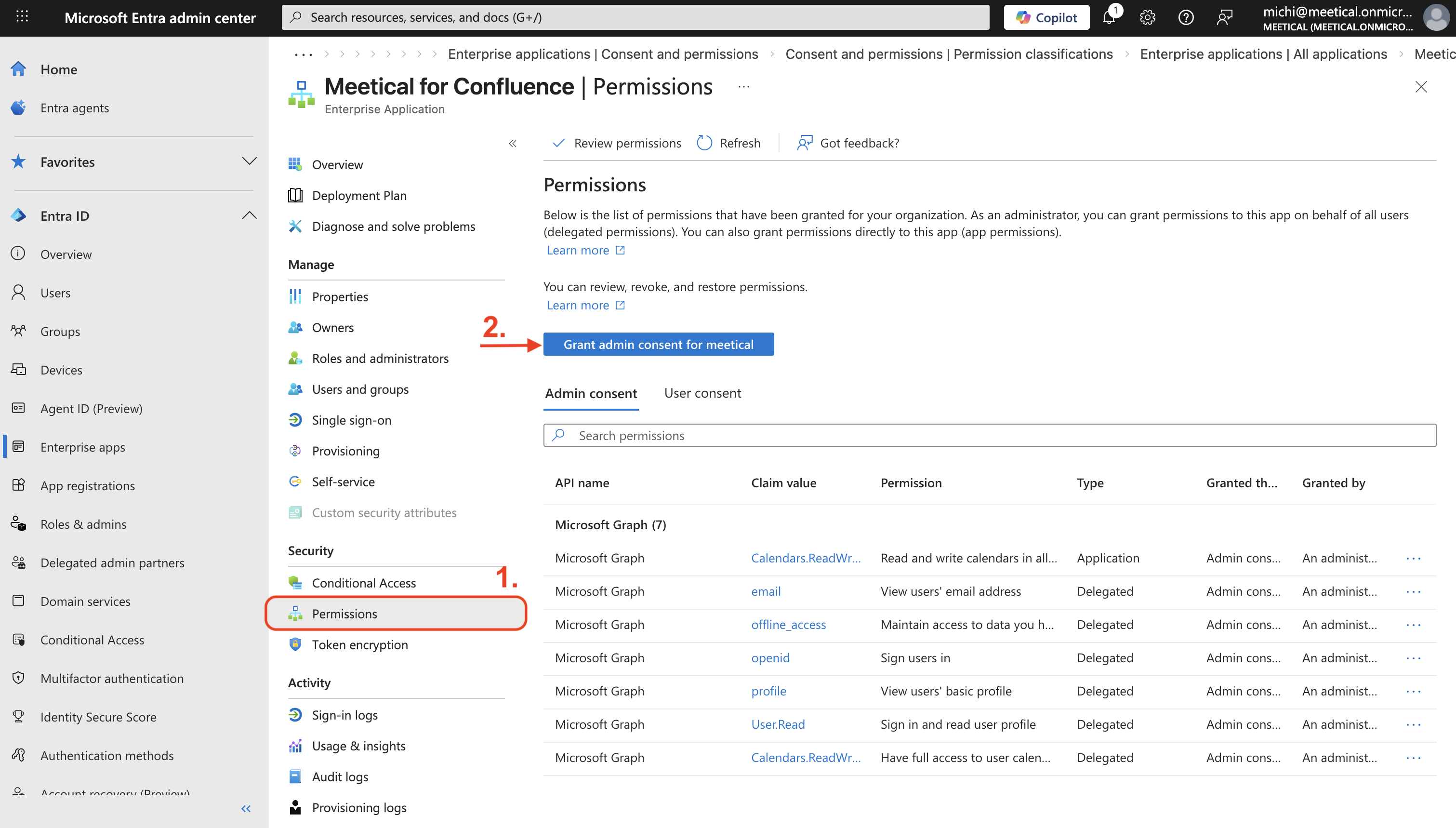
- Path: "Enterprise applications" → "Meetical for Confluence" → "Permissions"
- Click "Grant admin consent (tenant-wide)" and accept authorization
2. Make sure the app does not require per-user assignment
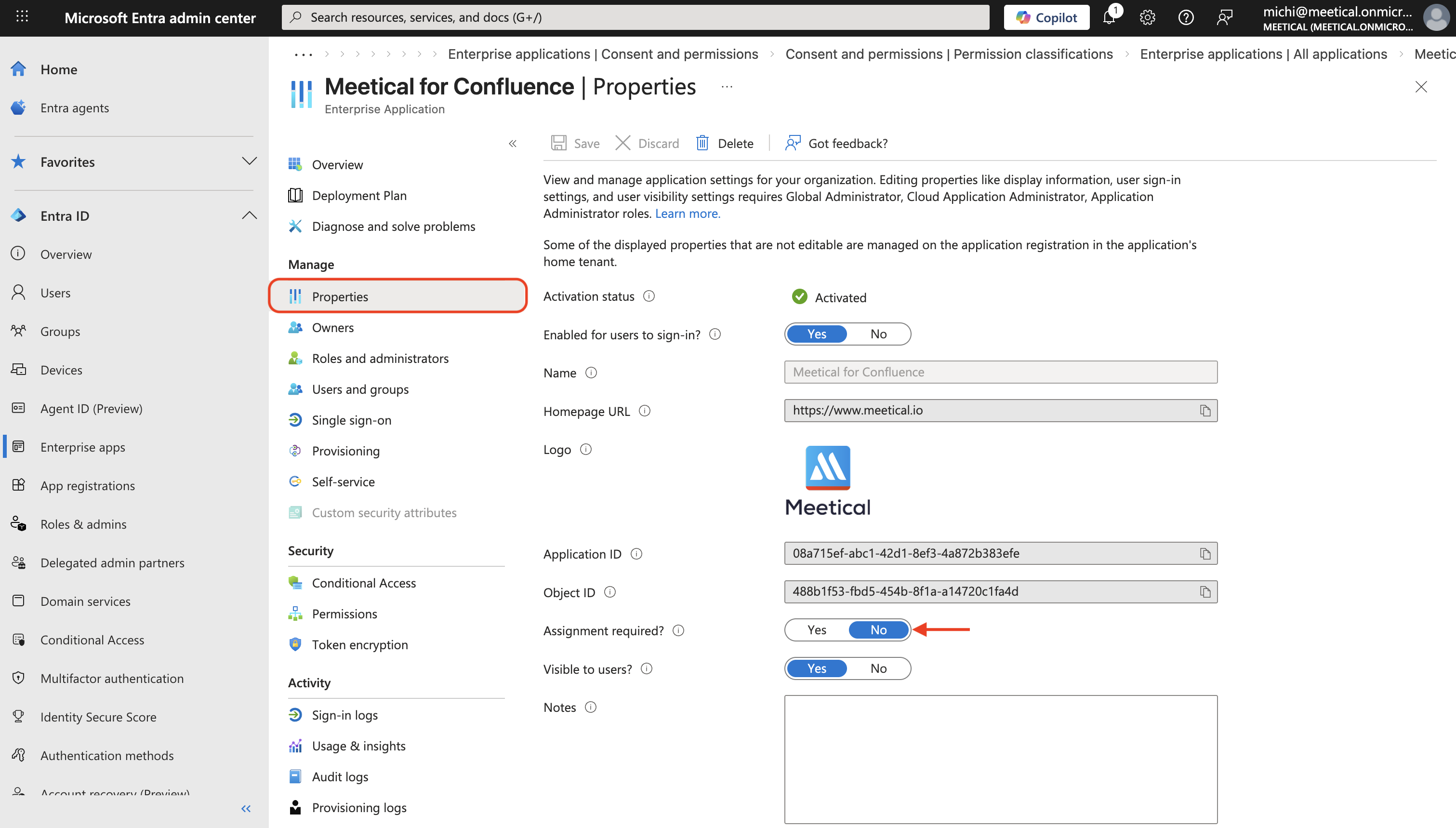
- Path: "Enterprise applications" → "Meetical for Confluence" → "Properties"
- Set "Assignment required?" = No (otherwise only assigned users can use the app).
3. (Optional) Keep the Admin consent workflow enabled
- Path: "Enterprise applications" → "Consent and permissions" → "Admin consent settings"
- Keep "Users can request admin consent" on yes; it won’t trigger for Meetical once the required permissions are already consented.
Note: These settings apply tenant-wide in Microsoft Entra, not just to Meetical—please align with your security owner/team before enabling them.

